How to use the external permit portal
A short guide for subcontractors and other external portal users: from your first sign-in to checking a permit request.
Screenshots show demonstration data. Select an image to enlarge it.
How to sign in
Get your personal invitation
Contact the employee at the inviting company. Once your account is created, you will receive an email with a registration link. Check your spam folder too. You cannot register without an invitation.
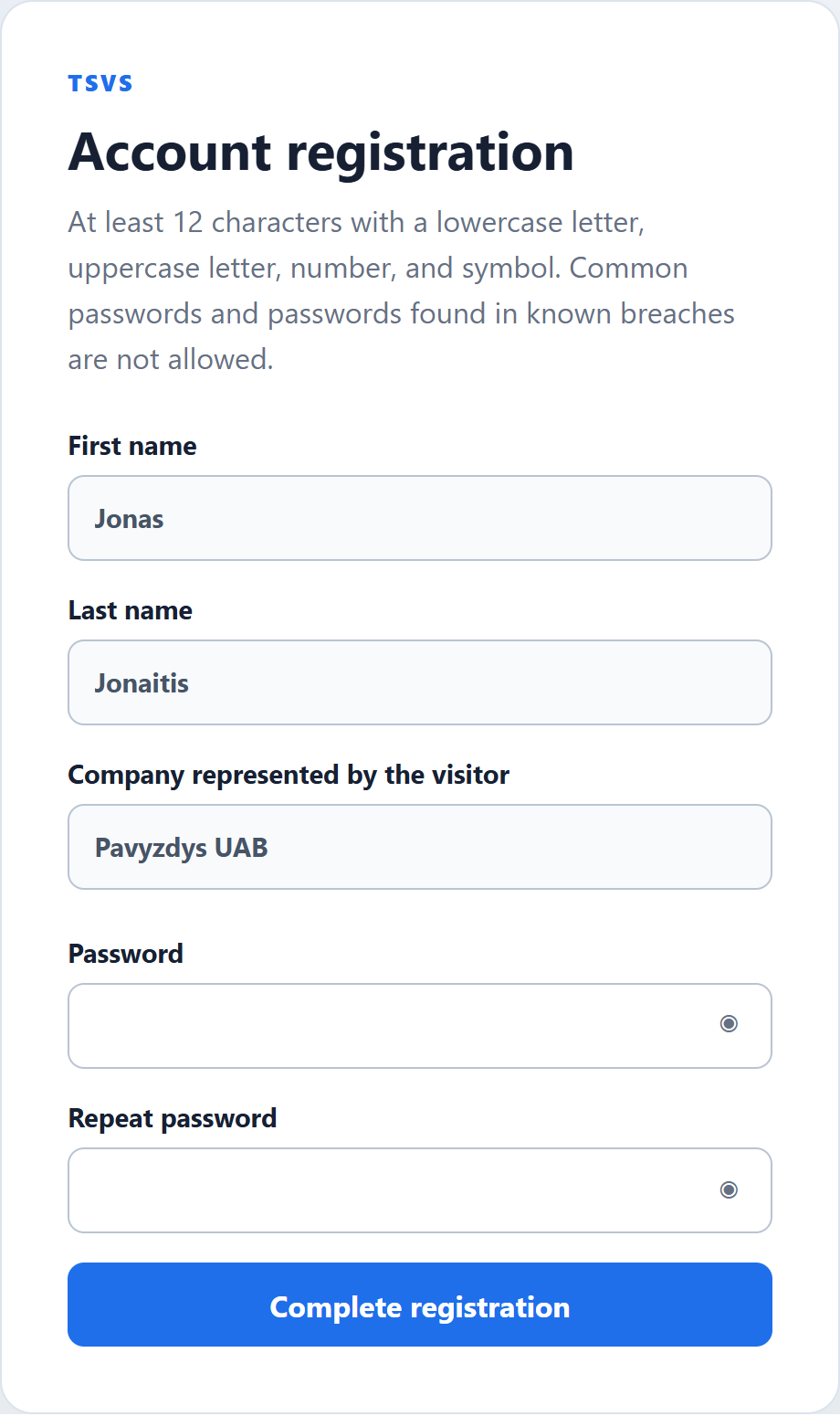
Complete registration
Open the invitation link, check the displayed details and enter a new password twice. Select “Complete registration”. The link is single-use; its validity is stated in the email. Do not forward your personal invitation link to someone else.
At least 12 characters with a lowercase letter, uppercase letter, number, and symbol. Common passwords and passwords found in known breaches are not allowed.
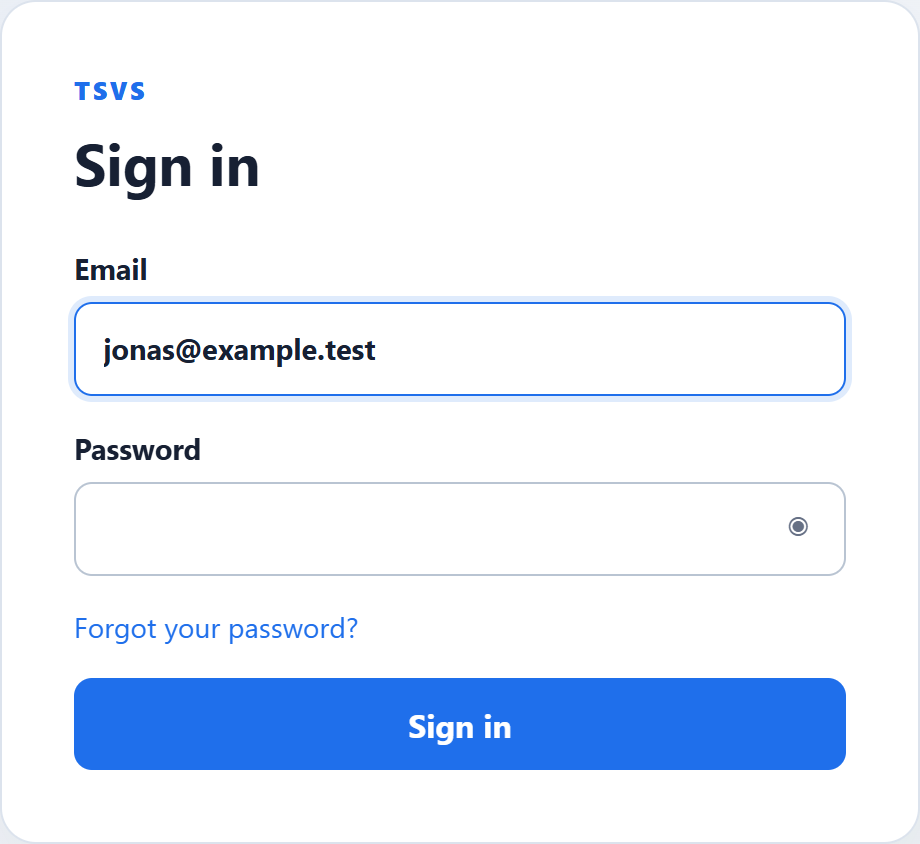
Sign in
On the portal sign-in page, enter the email address that received the invitation and the password you created. Select “Sign in”. Complete the Cloudflare check if shown.
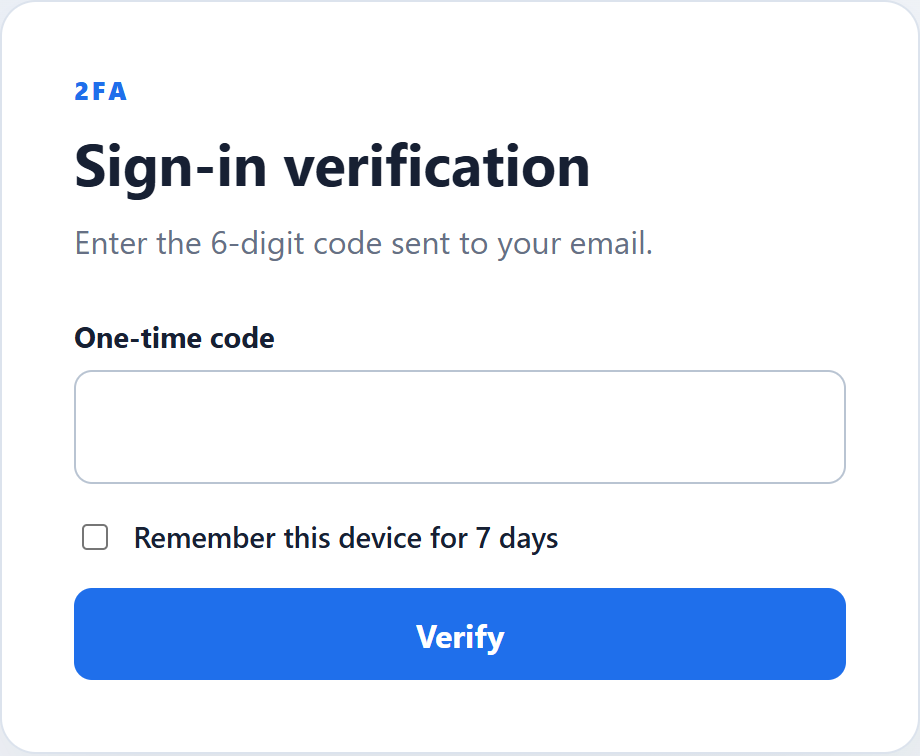
Verify your sign-in
When prompted, enter the 6-digit code sent to your email and select “Verify”. Use “Remember this device for 7 days” only on your own device. After signing in, you will see “My requests”.
How to submit a request
Open a new request
On “My requests”, select “New permit request”. Have the visitors’ details, visit times and, if needed, vehicle details and visa documents ready.
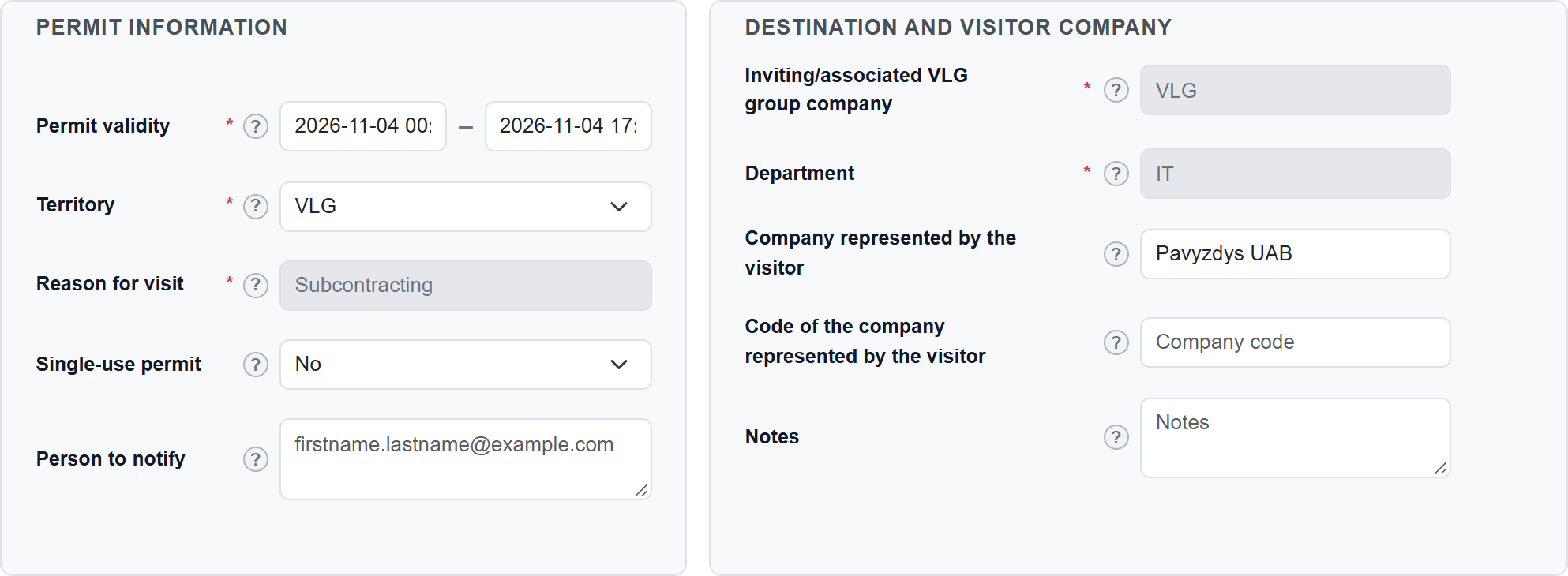
Choose the time and destination
Select the permit start and end time, territory, inviting company and department when shown. Only companies and departments assigned to your account are available. The reason for visit is fixed by your account. Check the visitor’s company details.
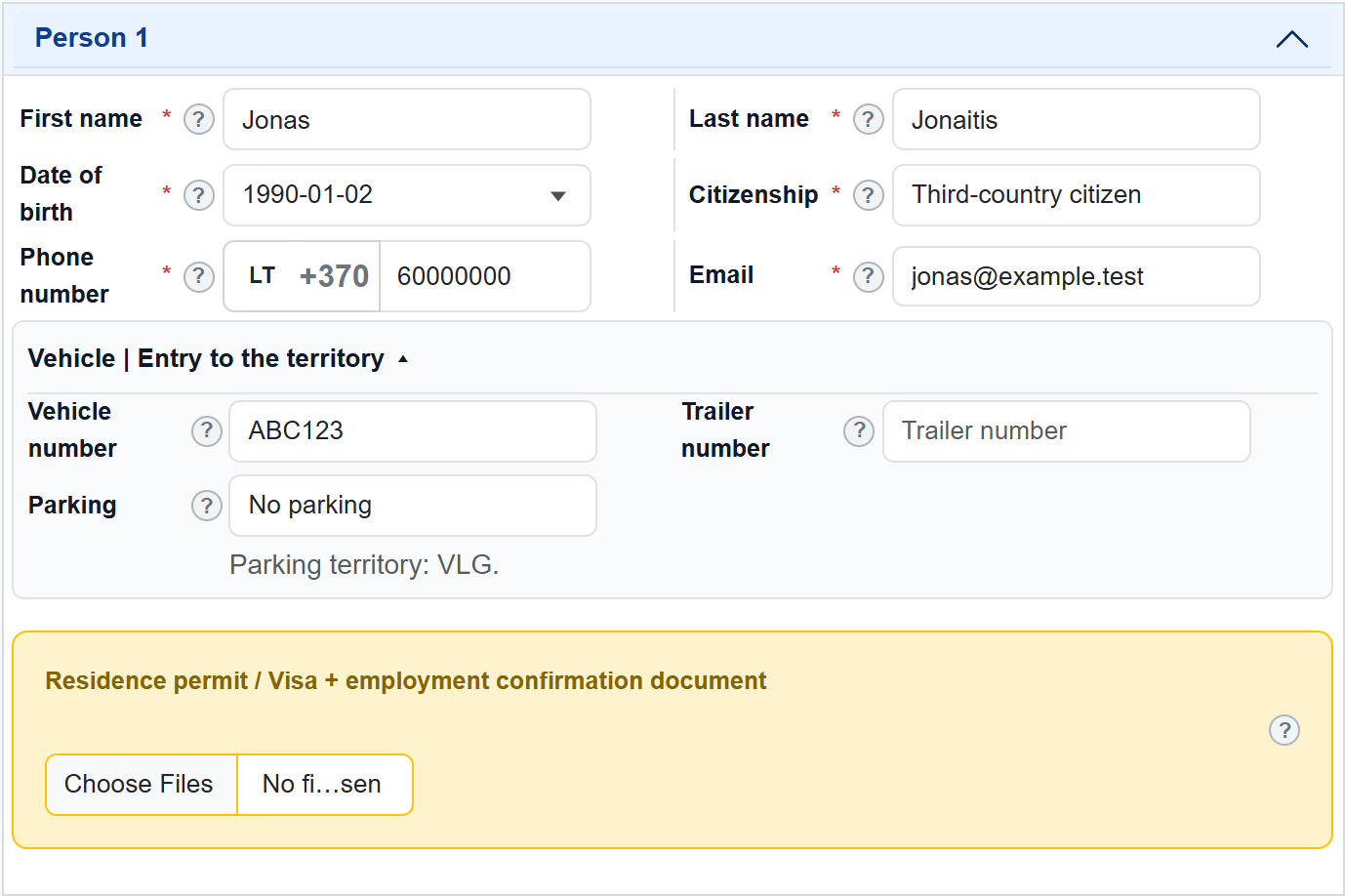
Enter each person’s details
Enter first and last names using Latin or Lithuanian letters, date of birth, phone number, email and citizenship. Fields marked with an asterisk are required. Use “Add another person” for additional people and complete each person’s details.
Add vehicles and documents
For vehicle entry, expand the vehicle section and enter the vehicle and, if needed, trailer number. Choose the territory before selecting parking. If the mandatory visa documents section appears, attach documents for each relevant person. File types and size limits are shown in the field’s “?” help.
Review and submit
Check dates, company and every person’s details, then select “Submit request”. Correct highlighted fields if errors appear. After successful submission, you will see the request or request list. Submitting a request does not mean the permit has been approved.
How to check the status
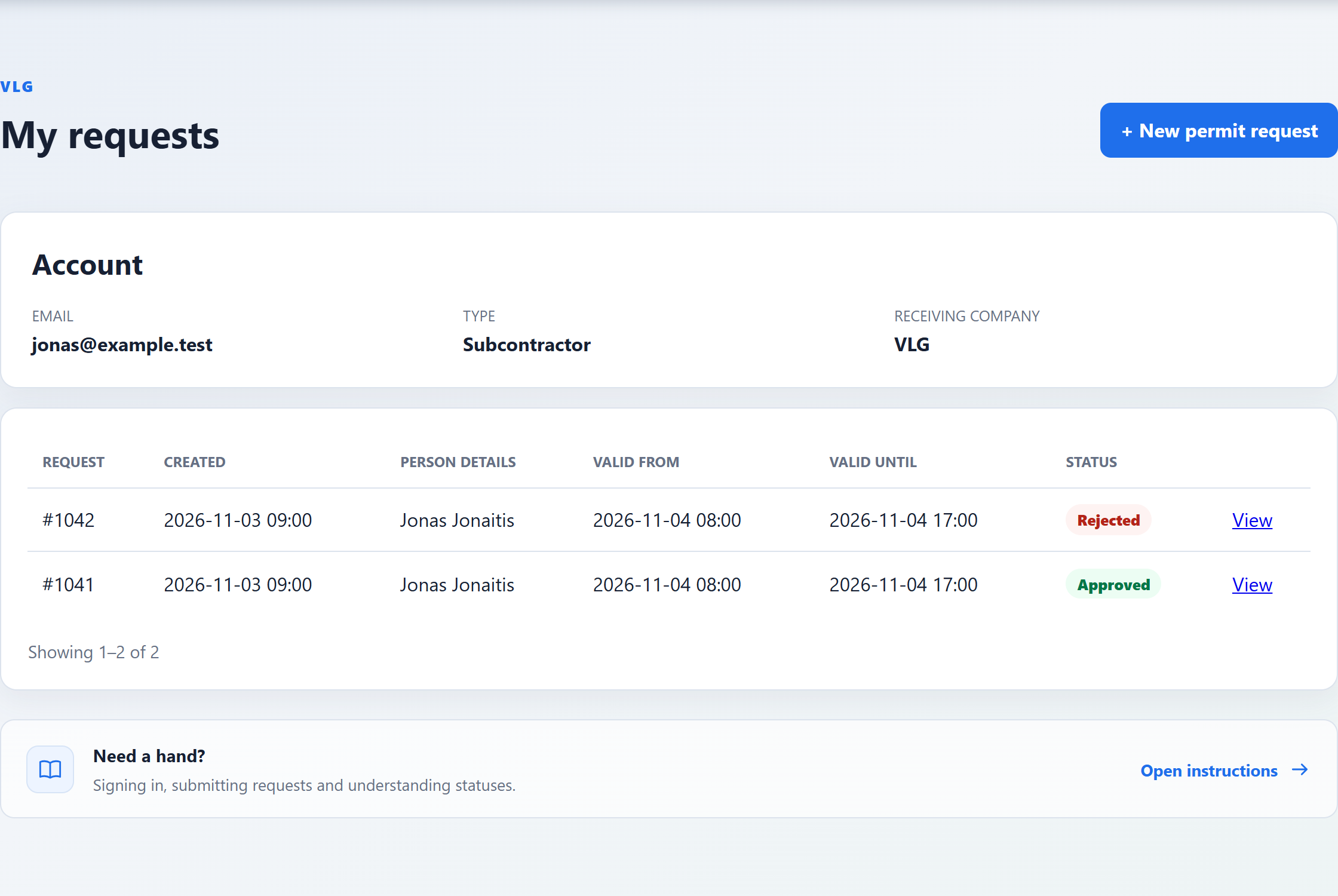
Open “My requests”
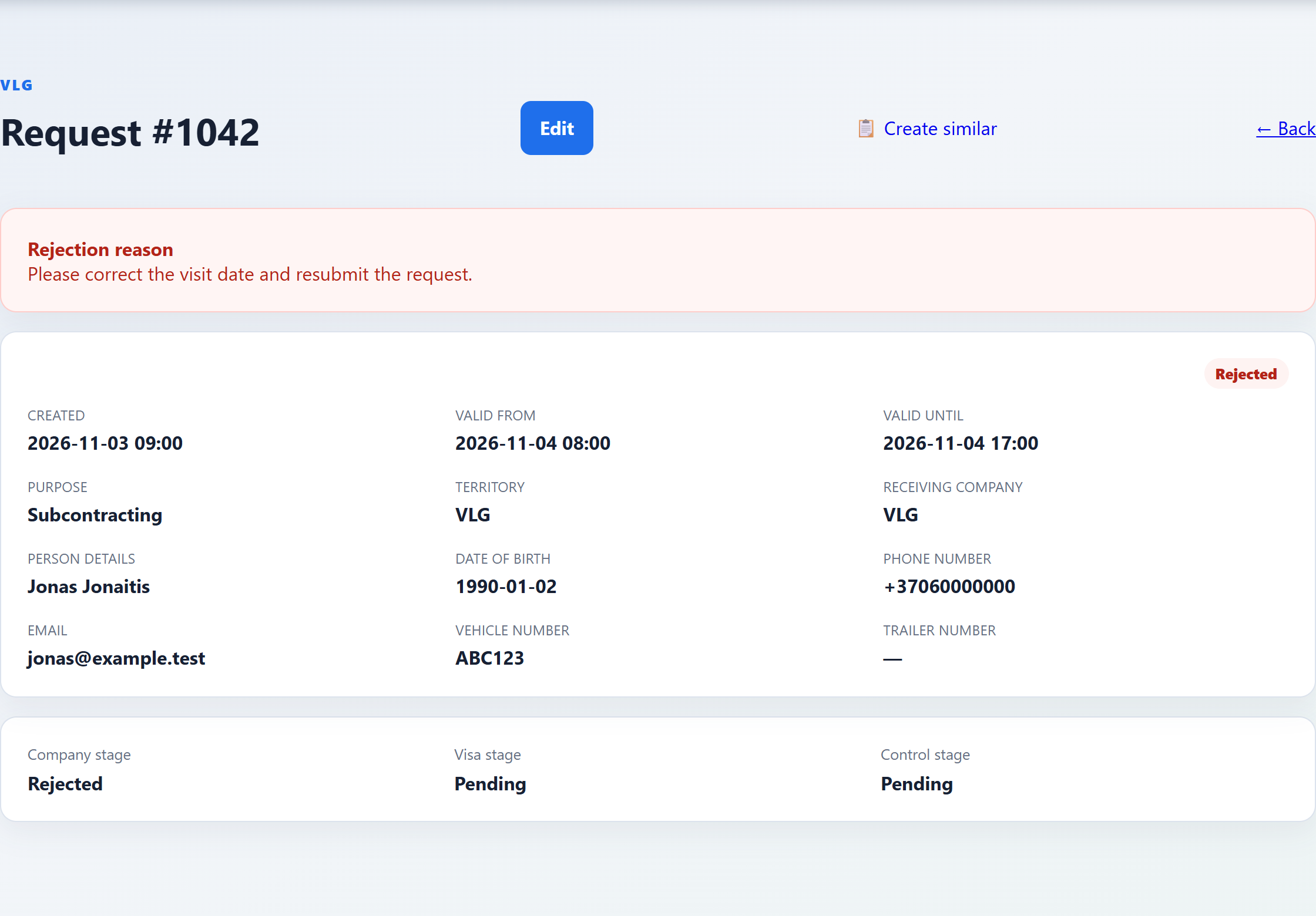
The list shows the request number, person, validity dates and status. Select “View” to see the details and individual approval stages.
Read the result
“New” means the request is still being processed; “Approved” means it has been approved. For “Rejected”, read the rejection reason. For “Error”, contact the inviting company’s employee and quote the request number.
Correct or create a similar request
When “Edit” is available, correct the details and select “Save and resubmit”. For a new visit, use “Create similar”, checking dates and all copied details before submission. Select “Sign out” when finished.
Troubleshooting
- No invitation, or the link has expired
- Check your spam folder and confirm your email address with the inviting company’s employee. Ask for a new invitation if the link has expired or was already used.
- Forgotten password or locked account
- On the sign-in page, select “Forgot your password?”, enter your account email and follow the email instructions. If no recovery email arrives, check spam and contact the inviting company’s employee.
- No verification code, or the code does not work
- Check your account mailbox and spam folder. Use the latest code. If it has expired, return to the sign-in page and sign in again to receive a new code.
- Missing company or department / access has expired
- Contact the inviting company’s employee to update your account permissions or extend access. Changing your password does not extend access.
- Service unavailable or submission problem
- Wait and try again later. Before submitting again, check “My requests” to see whether the request was already created. If the problem persists, send the error message and request number, if available, to the inviting company’s employee. Do not send passwords or sign-in codes.